Full page, one click
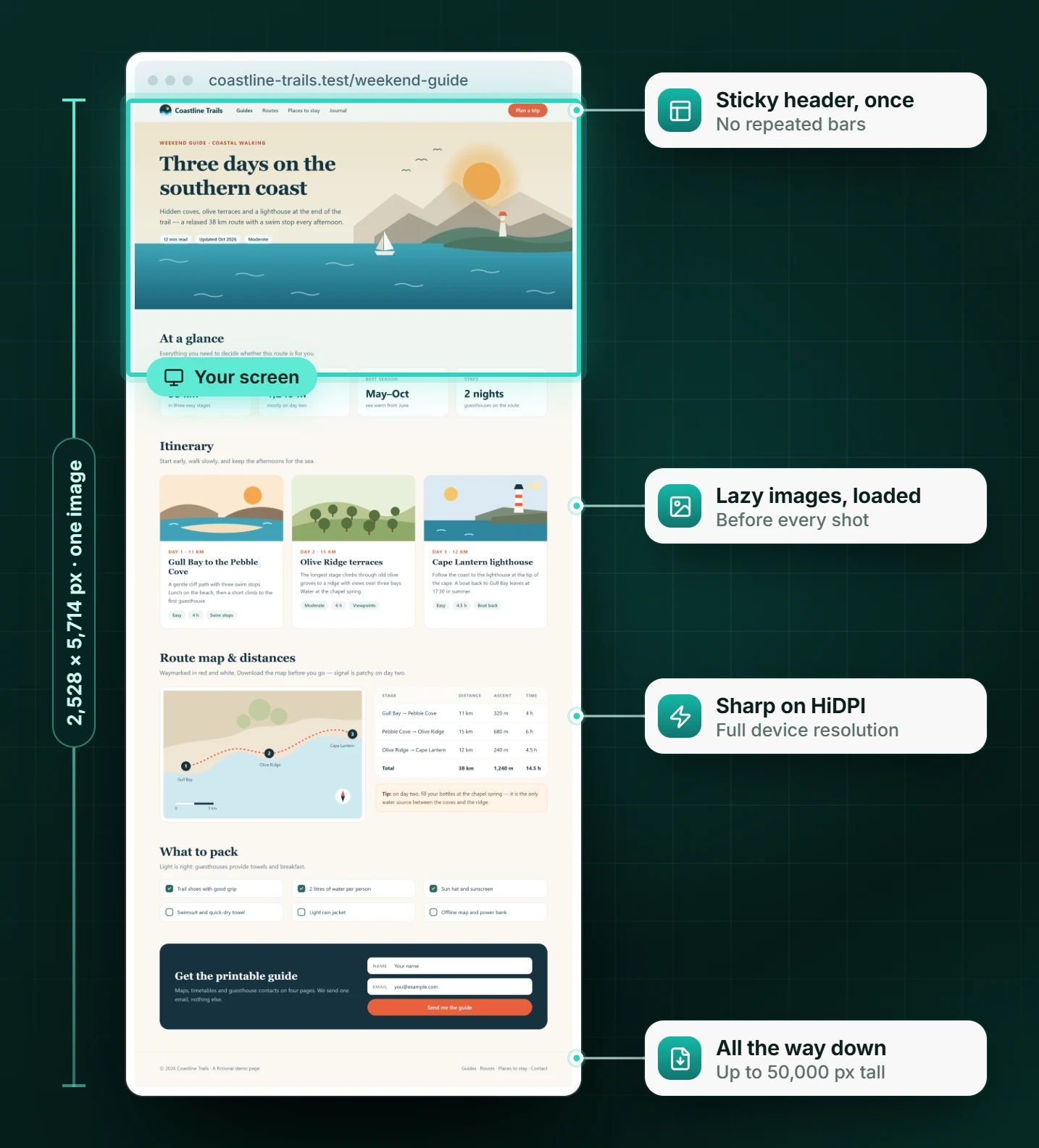
Scrolls the whole page and stitches it into one sharp image — even pages 50,000 px tall.
Free Chrome extension
Pageroll scrolls the page for you, stitches every pixel into one sharp image and opens it in a fast editor. Annotate, redact and export PNG, JPEG or PDF — all on your device.
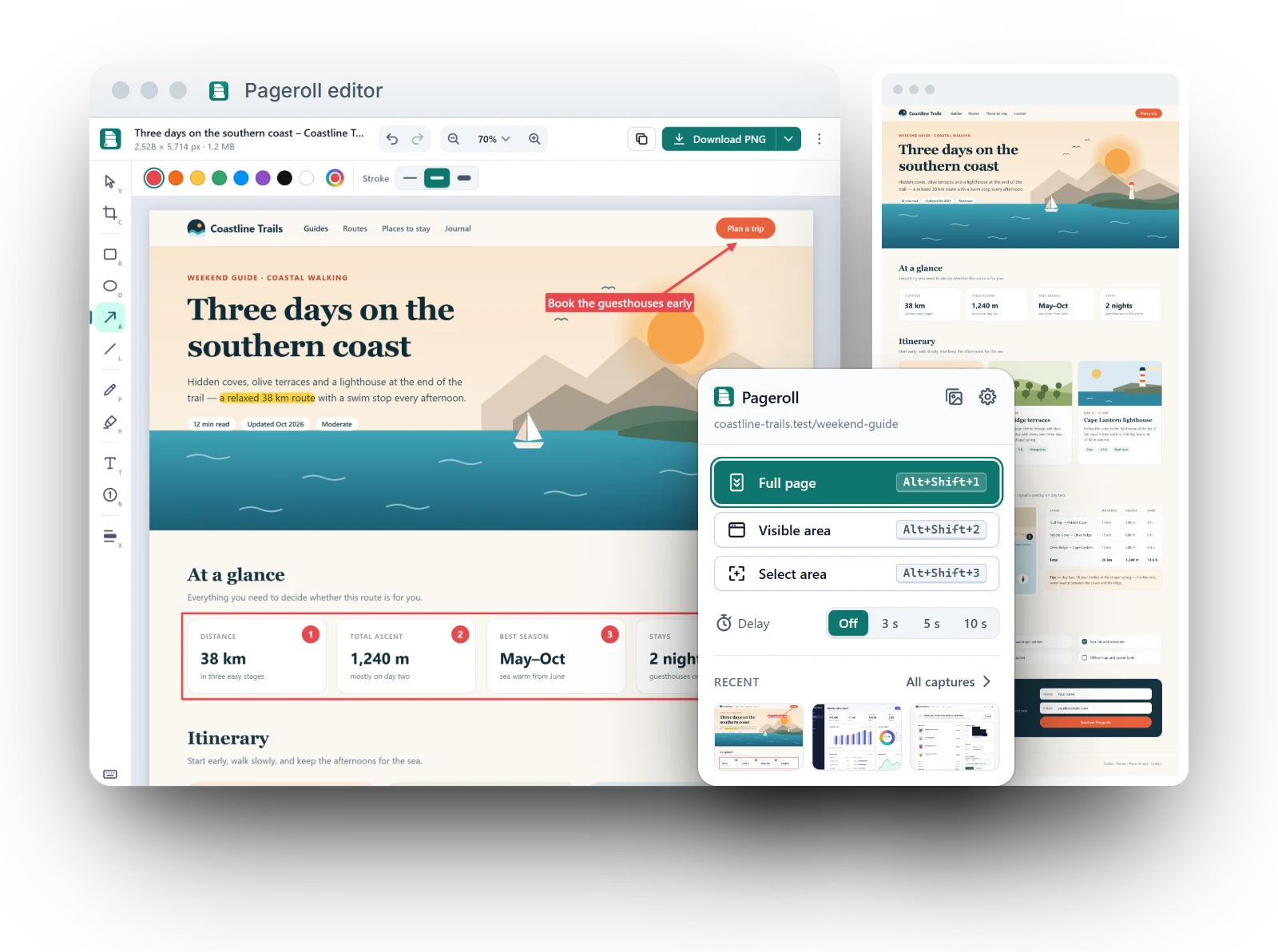
Everything you need
No sign-up, no watermark, no premium tier — every feature is included.
Scrolls the whole page and stitches it into one sharp image — even pages 50,000 px tall.
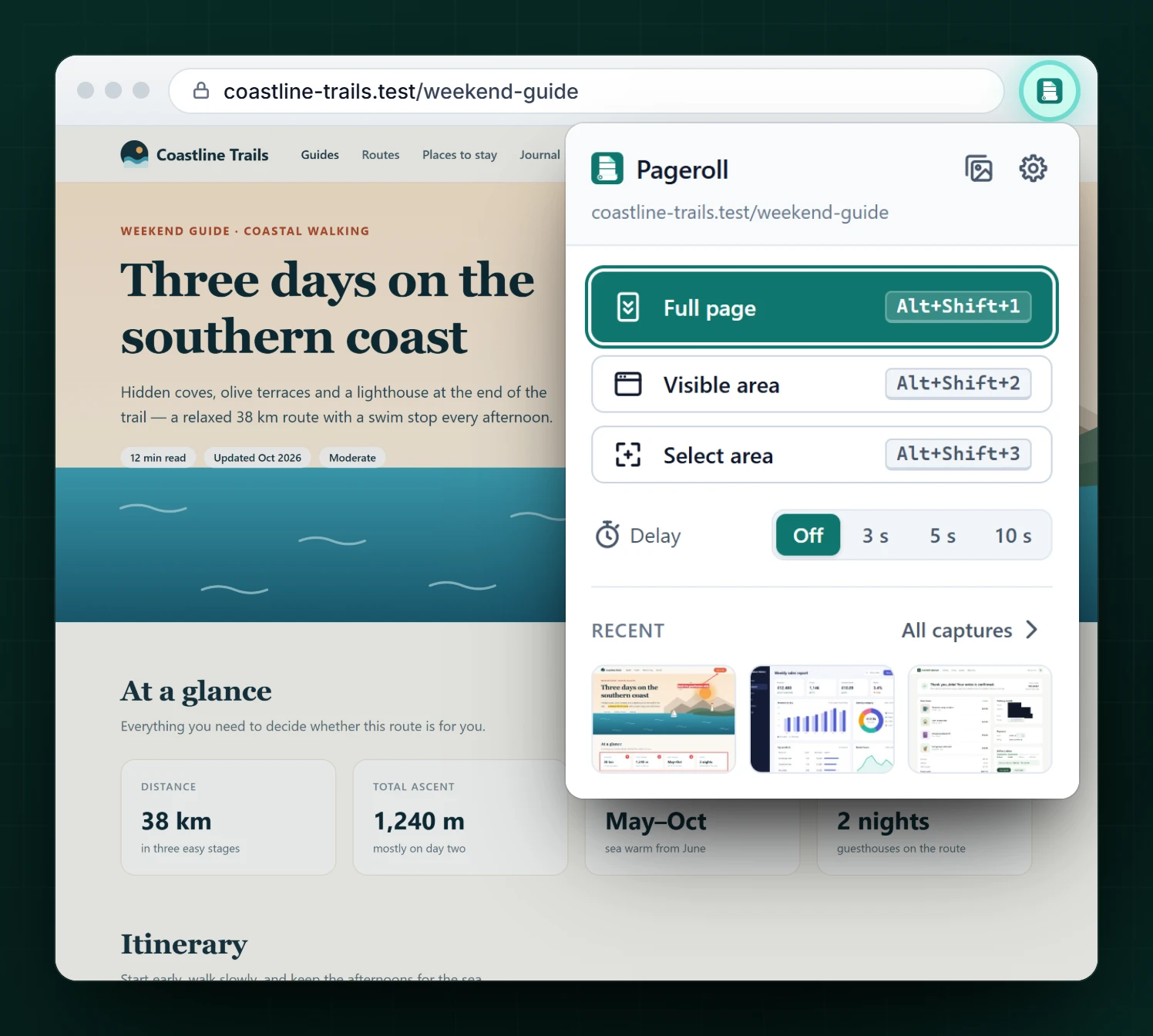
Grab just what you see, or drag a rectangle around exactly what you need. Add a 3, 5 or 10 s delay for menus.
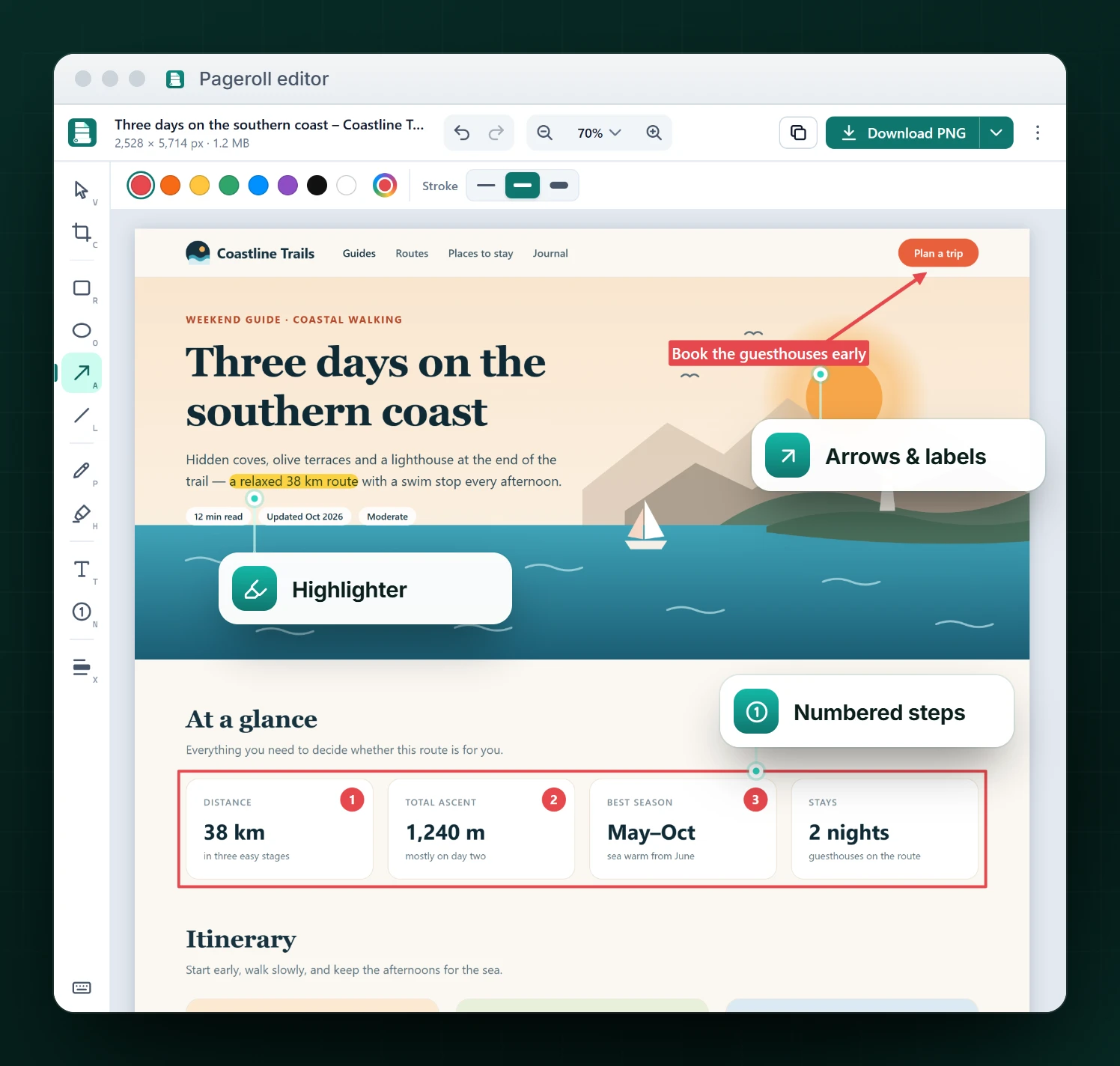
Arrows, shapes, text, numbered steps, highlighter, pen and crop — with undo, redo and zoom.
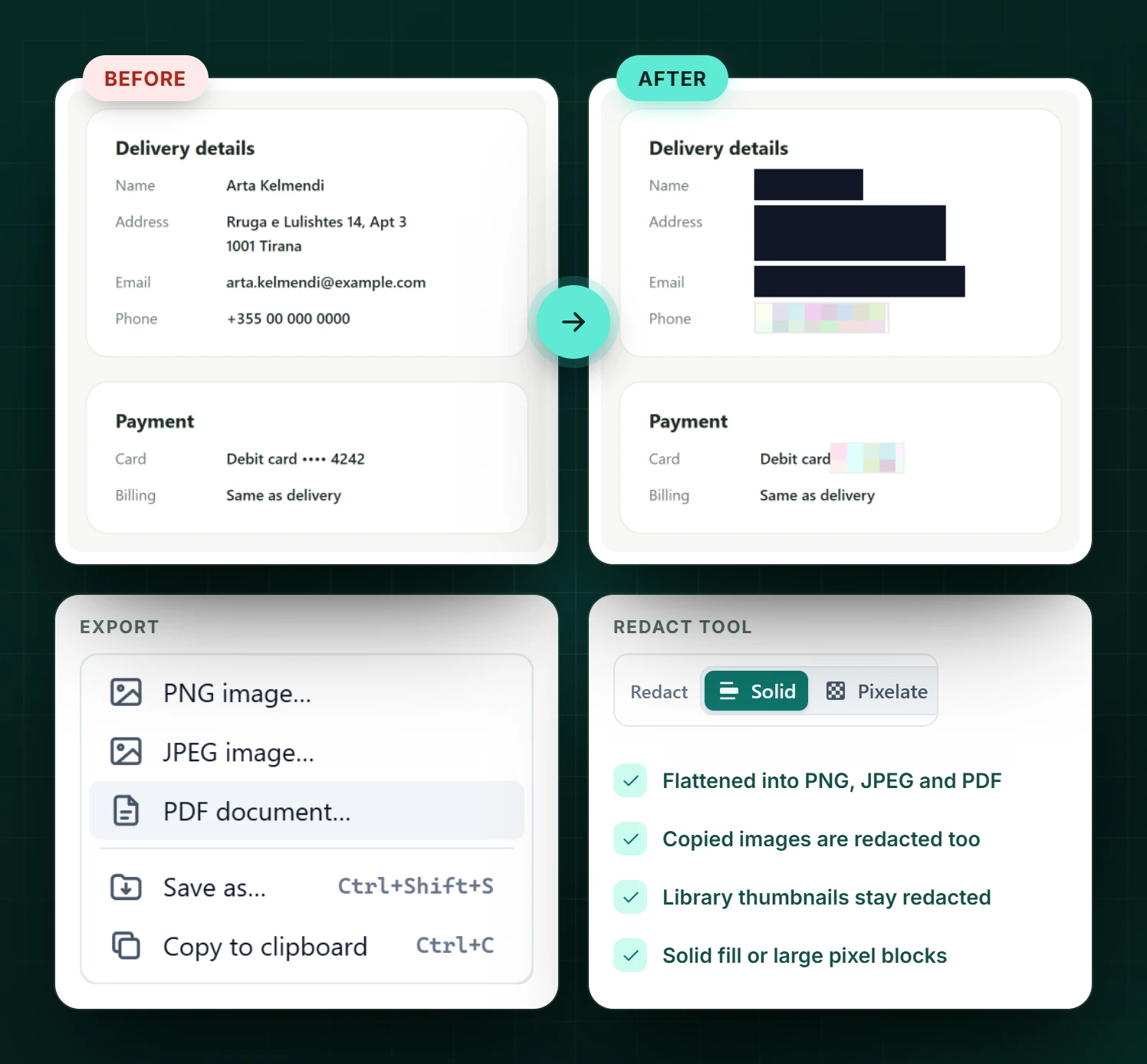
Black out or pixelate private details. Redactions are flattened into every file you export.
PNG, JPEG, multi-page PDF (Fit, A4 or Letter) — or copy straight to the clipboard.
Every capture is kept locally. Search, filter, reopen and keep editing whenever you like.
How it works
01
Pageroll scrolls for you, waits for every image to load and stitches it all into one sharp picture — then leaves the page exactly as it was.
02
Click the toolbar icon, right-click the page or press a shortcut.
Shortcuts can be changed at chrome://extensions/shortcuts.
03
Every capture opens in a fast editor made for guides, bug reports and feedback.
04
Black out or pixelate names, emails and card numbers. What you export contains only the redacted pixels — nothing hidden underneath to recover.
05
Pageroll keeps your captures in a local library. Search by title or address, filter by type, reopen and keep editing — or clean up with one click.

Private by design
Pageroll processes and stores everything inside your browser. It has no servers, no accounts, no analytics and no ads — and it never sends your screenshots, page titles or addresses anywhere.
Read the privacy policy →FAQ
Yes. Every feature is free — no account, no premium tier and no watermark on your images.
No. Captures are processed and stored only in your browser on your device. Pageroll doesn’t send your images, page titles or addresses anywhere. See the privacy policy.
Google Chrome 120 or newer on Windows, macOS, Linux and ChromeOS.
Chrome doesn’t let extensions run on its own pages — such as chrome:// pages, the Chrome Web Store and the New Tab page. On most of them you can still capture the visible area.
Yes. Pageroll speaks 16 languages, including Shqip, Deutsch, Español, Français, Italiano, Português, Türkçe, Polski, Русский, Українська, 日本語, 한국어 and 简体中文. Choose one in Options › General › Language.
In the Pageroll library, on your device. Delete one capture or all of them from the library or Options. Pageroll keeps your latest 100 captures by default and removes older ones automatically; you can change the limit.
Yes. Exported files contain only the final pixels: redacted areas are solid fill or large pixel blocks, with nothing hidden underneath.

Pageroll is currently in review at the Chrome Web Store and will be available here very soon.
Coming soon to the Chrome Web Store